Some hardwares that are required to run with Yezza’s CMS system:
Important note: Yezza system is cloud based. Yezza will not install local server at your clinic
PC Specifications
Any PC is compatible with our CMS. As long as your clinic has a working internet & browser to open Yezza website.
CPU: Intel Core i3 and above
RAM: 4GB and above
Video: 1920×1080 resolution capable card
OS: Windows 10 or macOS
Browser: Google Chrome
Internet: 5 MB/s per PC/Staff in the clinic
MyKad Reader
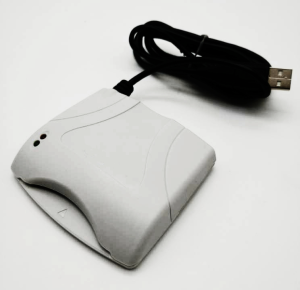
Purchase Link: https://s.shopee.com.my/6fMNenWvkp (Choose Reader only)
Any MyKad reader should be compatible with Yezza system.
Having a MyKad reader can speed up your patient’s registration process as it automatically fills up your patient’s name, IC, date of birth dan address.
If you already owned a card reader, do perform this steps to test the compatibility: How To Use MyKad Reader with Yezza CMS
Thermal Printer (Drug Label Only)
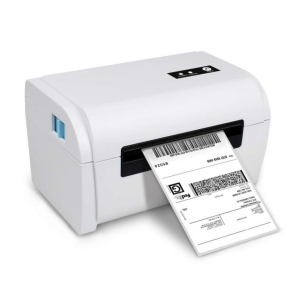
Purchase Link: https://s.shopee.com.my/LXwA6I15v
(Note: Choose Wifi + USB Variant).
Thermal printer is used to print your drug labels.
Drug labels are usually 70mm x 50 mm sticker labels. It can vary based on what kind of label size you are using for the medicine.
Any thermal printer can be used as long as it has this specs:
- Paper size settings where the print width can be customised for common sticker label:
- 70mm x 50mm
- 80mm x 50mm
- Support connection to you windows PC via USB/bluetooth
If you don’t own any, you can buy this printer here : link
Drug Stickers
Purchase Link: https://s.shopee.com.my/9A9KgU6wfy
You may choose any sticker size as long as it fits your medicine packaging. Some recommended size:
- 70mm x 50mm
- 80mm x 50mm
Thermal Printer (For printing Queue Number)
Purchase Link: https://s.shopee.com.my/v5lewh3A
(Note: Choose Wifi + USB Variant).
This printer is used to print out Queue Papers for your patients.
Printer
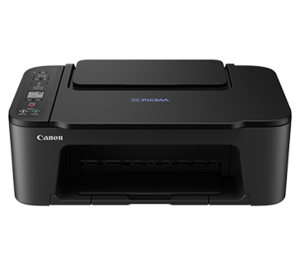
Normal printer is normally used to print Medical Certificate (MC), Referral letters or receipts. Any printer can be used as long as it is able to connect with your PC.
Cash Drawer
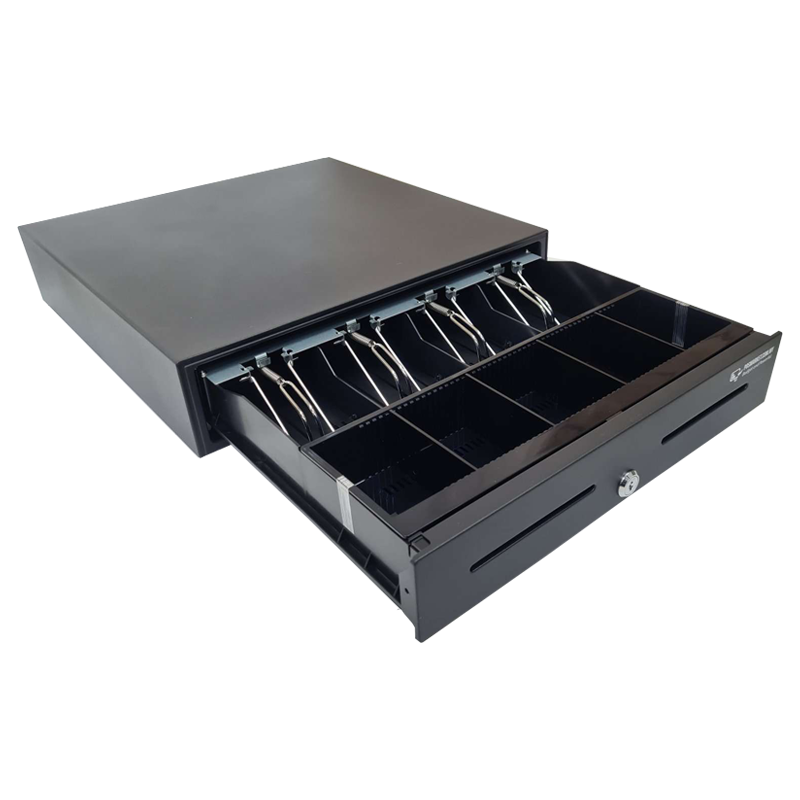
Purchase Link: https://s.shopee.com.my/4AfyXE8Zti (Note: Need to purchase together with USB Trigger)
Display TV (Optional)
Yezza provides a Queue System to all users. You may place a TV at your clinic’s waiting area to display the Queue system. There are few configurations that you may choose:
Option 1: Smart TV –> Recommended
For this option, you can open any supported browser app to open Queue TV link
If you already have a Smart TV, read here: Setting Up Queue TV for the First Time
Option 2: Normal TV + Google Chromecast –> Recommended
If you already have a normal TV at your clinic, you will only need to purchase either a Google Chromecast or TV Mi Stick.
This is the easiest way to convert a normal TV to Smart TV.
Option 3: Normal TV (No internet connection):
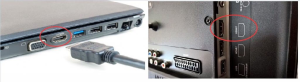
For this option, you will need to connect the TV with any PC/Computer via HDMI/VGA connection.